
How do you prepare everyday payments with an AI assistant?


Received a bill for electricity, internet, or other services? If you use an AI assistant, such as Claude Code or another AI tool, you no longer need to copy long IBANs, amounts, and payment details by hand – it can do this for you.
The assistant reads the bill and prepares a draft payment in your Paysera account within seconds. All that's left for you is to check and sign it.
What is a personal access token?
A personal access token is a permission you create yourself that lets your AI assistant connect to your Paysera account. You limit what it can do and can suspend it at any time.
How does it help?
- Less routine work: you no longer have to enter IBANs, amounts, and payment details by hand.
- Easy to create: you can create the token in online banking in a few minutes, with no separate agreement.
- You set the limits: you choose which accounts the token can see (for example, only the account you use for everyday spending) and what it can do.
How does the AI assistant prepare a payment?
- Reading the bill: the AI assistant reads the invoice you give it.
- Preparing the payment: the assistant prepares a draft payment in your Paysera account. You will find it in online banking under Transfers › List of Transfers, in the Unsigned tab.
- Signing: you log in to the Paysera Super App or online banking, review the prepared details, and sign.
Important: your AI assistant can make mistakes, so check the prepared payment before you sign it. Money leaves your account only after you sign the payment.
How do you create a token?
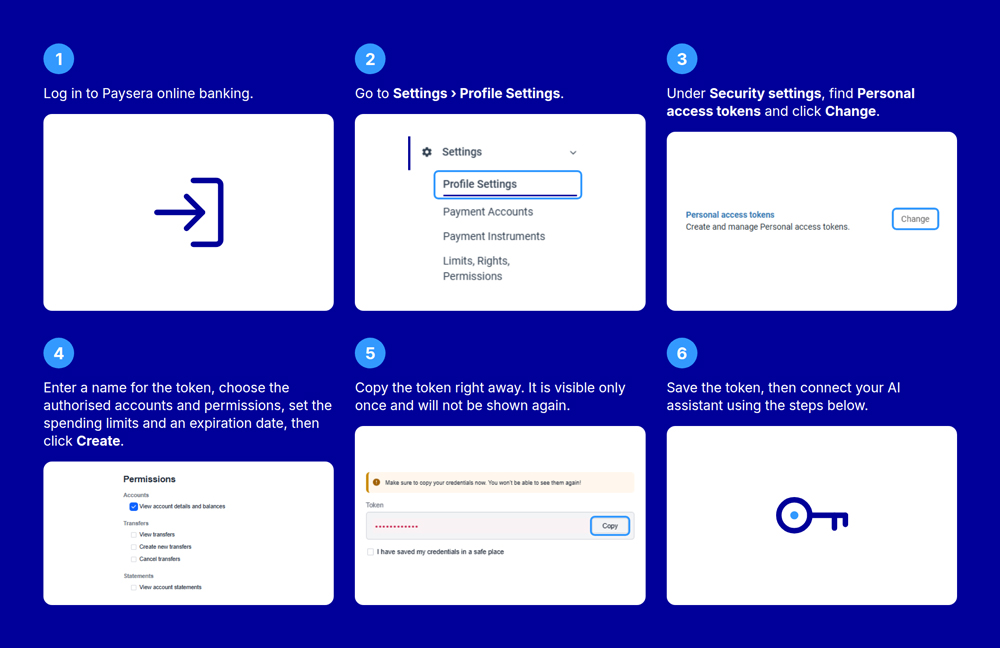
- Log in to Paysera online banking.
- Go to Settings › Profile Settings.
- Under Security settings, find Personal access tokens and click Change.
- Enter a name for the token, choose the authorised accounts and permissions, set the spending limits and an expiration date, then click Create.
- Copy the token right away. It is visible only once and will not be shown again.
- Save the token, then connect your AI assistant using the steps below.
How do you set limits on a token?
When you create a token, you set its limits yourself:
- Permissions: choose what the token is allowed to do. It can view account details, balances, transfers, and statements, or create and cancel transfers. We recommend allowing it to view account details and create transfers. Transfers cannot be signed with a token.
- Spending limits: if the token is allowed to create transfers, set a limit for a single transaction and a total daily limit.
- Validity: set an expiry date. We recommend replacing your token with a new one every 90 days.
- Changing a token: you cannot change a token's permissions, accounts, or validity once it is created, so if you need different ones, create a new token.
- Suspending at any time: you can suspend the token right where you created it.
How do you connect an AI assistant?
Paysera has released an open-source skill that lets Claude Code prepare Paysera transfers. Its code is public, so anyone can review it.
First, install Claude Code by following the official guide. You will also need Python 3.8+ and curl (a tool programs use to reach the internet from the command line). Then install the skill via the terminal:
claude plugin marketplace add paysera/skills
claude plugin install paysera-payments@paysera-skills
Save the token to ~/.config/paysera-payments/token (do not paste it into a chat with the assistant). In the ALLOWED_ACCOUNTS list in create-payment.py, enter your account's EVP number (not the IBAN) and the name the recipient will see.
After that, give the assistant an invoice and ask it to prepare a transfer.
Frequently asked questions
Is it safe to let AI see my account?
The AI assistant sees only the accounts and data you allowed in the token, and it cannot send money unless you sign the payment. Treat the token like a password.
Can AI send money without me?
No. A transfer only goes through after you sign it, and a token cannot be used for that.
What if AI makes a mistake?
Do not sign the payment, and ask the assistant to prepare it again.
How much does the token cost?
The personal access token is free of charge and does not require a separate agreement. Standard Paysera fees apply to the transfers themselves. The terms of use of the AI tool are set by its provider.
Do I need technical knowledge?
Yes, to connect the assistant: you will need to use the terminal and enter a few commands. You can create the token itself in online banking without any technical knowledge.
Which AI assistants does it work with?
The official Paysera skill is built for Claude Code. You would need to connect other AI tools to the Paysera API yourself, using the developer documentation.
How do I suspend or revoke a token?
Log in to online banking and open your list of personal access tokens. There you can click Suspend and reactivate the token later, or click Revoke, which cannot be undone.
What if someone else finds out my token?
Revoke the token in online banking right away, because anyone who has it can do whatever you allowed it to do. Do not share the token with anyone.
Ready to automate your everyday payments?
Create a personal access token in online banking in just a few minutes. It is free and fully self-service.